
Hot Swap Report Connections – External Tools
Latest Version Download:
Download the latest version of Hot Swap Connections using Business Ops [
](https://raw.githubusercontent.com/PowerBISteve/powerbiscripts/master/HotSwapReportConnections.zip)
Hot Swap Connections
Splitting models from reports has great advantages, but can make it harder to edit. When editing a model it is useful to see how you it will effect the reports. Using live connections would mean republishing the model back to the cloud and then refreshing the connection for every change you wish to test. In addition, you would probably want to make test workspaces to not overwrite a live production model while developing.
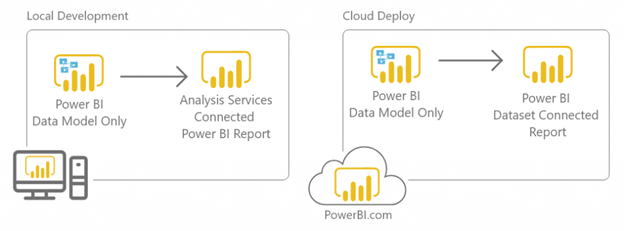
Now there is an external tool that can help solve these issues. The tool has two functions. The first will allow you to switch from a live connection to directly connecting to an open Power BI report. This will allow “Local Development” so that it can be done on your machine without needing to republish. Changes can be seen instantly and time spent on testing can be dramatically decreased.
The second will removed any connections to allow to reconnect to a shared dataset or AAS model.
Instructions to Install
Please install using the official installer here:
https://powerbi.tips/2020/08/one-tool-to-install-them-all/
Using the Hot Swap Connections Tool
After installing the tool, click external tools the Hot Swap Connections to launch.
Connect Tab
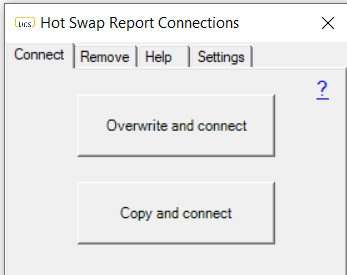
This tool will remove any live connections from the selected report and connect it directly to the Power BI report it was launched from. This will only remove live connections so you cannot accidentally delete entire models.
You can choose between Overwrite and connect or Copy and connect. Selecting Overwrite will directly edit that file by removing the connections and replacing with a live connection to the current file. Selecting copy will leave your file intact and create a copy in the same directory with the suffix defined in the settings tab.
It will then open the report that is connected to the model file.
Steps:
- Open your Model file
- Select the Connect tab
- Run Hot Swap Connections
- Choose to Overwrite or Copy
- Select Report file to connect
Remove Tab
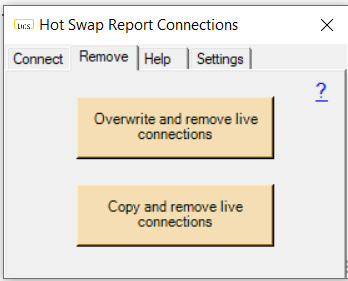
This tool will remove any live connections from the selected report and open the file. This is useful when you have made local edits and want to connect it back to a dataset or analysis services model. This will only remove live connections so you cannot accidentally delete entire models.
You can choose between Overwrite and remove live connections or Copy and remove live connections. Selecting Overwrite will directly edit that file by removing the connections. Selecting copy will leave your file intact and create a copy in the same directory with the suffix defined in the settings tab.
It will then open the report that has no connections.
Steps:
- Open any Power BI report
- Select the Remove tab
- Run Remove Connections
- Choose to Overwrite or Copy
- Select Report file to remove connections
The script will leave all visualizations and report features intact. But, all connections will be removed. When you open the report again in power bi desktop, all visuals will appear broken:

This is because you have removed all data from the report. Select a new data source to connect the report to. If the new source matches the names of the columns and measures used in the visuals, they will all repopulate.
Settings Tab
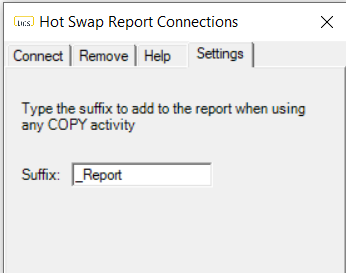
When selecting Copy and connect or Copy and remove live connections, the tool will create a copy of your report first so you do not directly edit you report file. It will place the copy in the same directory as the original and add a suffix as defined in the settings tab.
Watch the webinar below
Steve and Mike talk through the external tool and see it in action!