
Designer: Use any Scrim from the Gallery when Building Wireframes
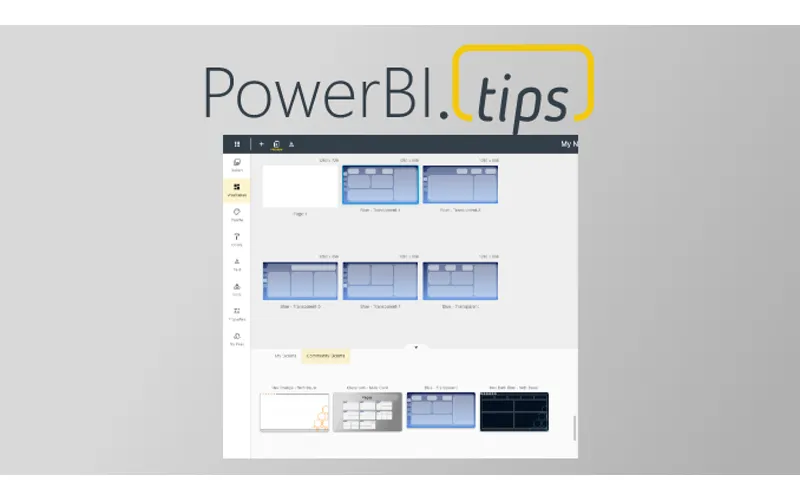
The Power BI Tips Theme Generator: Your Ultimate Theming Tool
The Power BI Tips Theme Generator is the go-to resource for users aiming to create consistent looking Power BI reports and dashboards with minimal effort. It simplifies Theme building, even for those who lack a strong background in design or coding. It empowers any user to create stunning and consistent looking reports with ease.
Introducing the Gallery Integration in Wireframes to extract Scrims
The Gallery Integration into Wireframes for Scrims is a feature designed to streamline the theme building process even further. It is particularly valuable for users who have invested time and effort in crafting their own themes. This feature brings the power of the Gallery background images (Scrims) into the Wireframes section. This allows users to access all the projects available in the Gallery! User can then select any, or all, of the background images to apply to their pages.
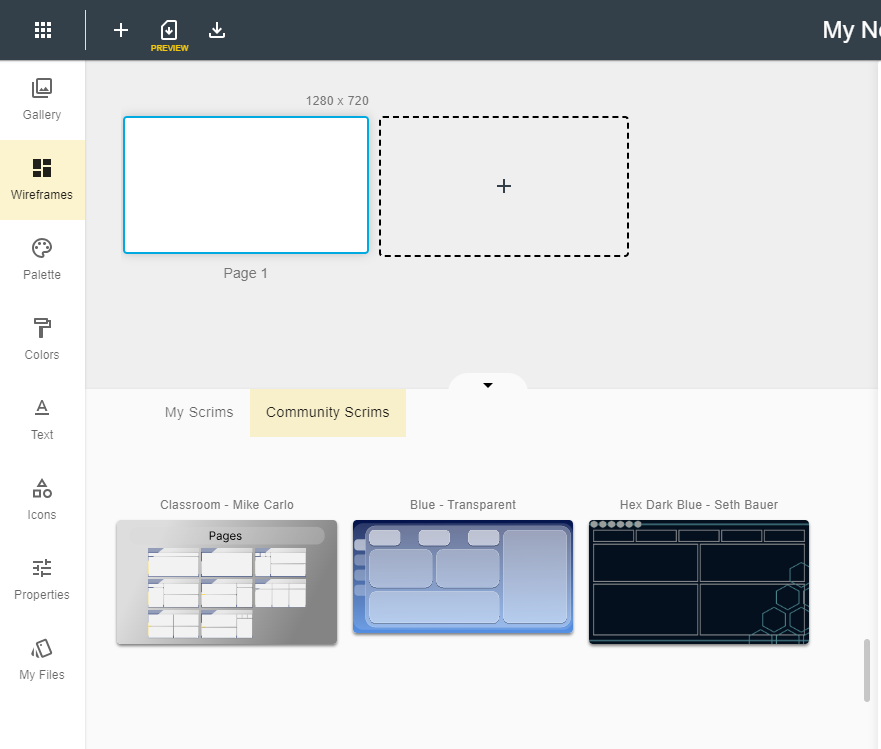
Simplified Background and Page Creation
The true magic of the Gallery Integration lies in its ability to simplify the creation of backgrounds and pages for your Power BI reports. Here’s how it works:
- Explore the Gallery: Start by browsing through the Gallery projects in the fly out. Each Gallery project offers unique backgrounds (Scrims).
- Select Your Desired Gallery Project: When you find a project that resonates with your vision, simply click on it.
- Add Background Images to My Scrims: From within the selected Gallery project, you can pull background images into My Scrims by selecting “Copy to My Scrims”.
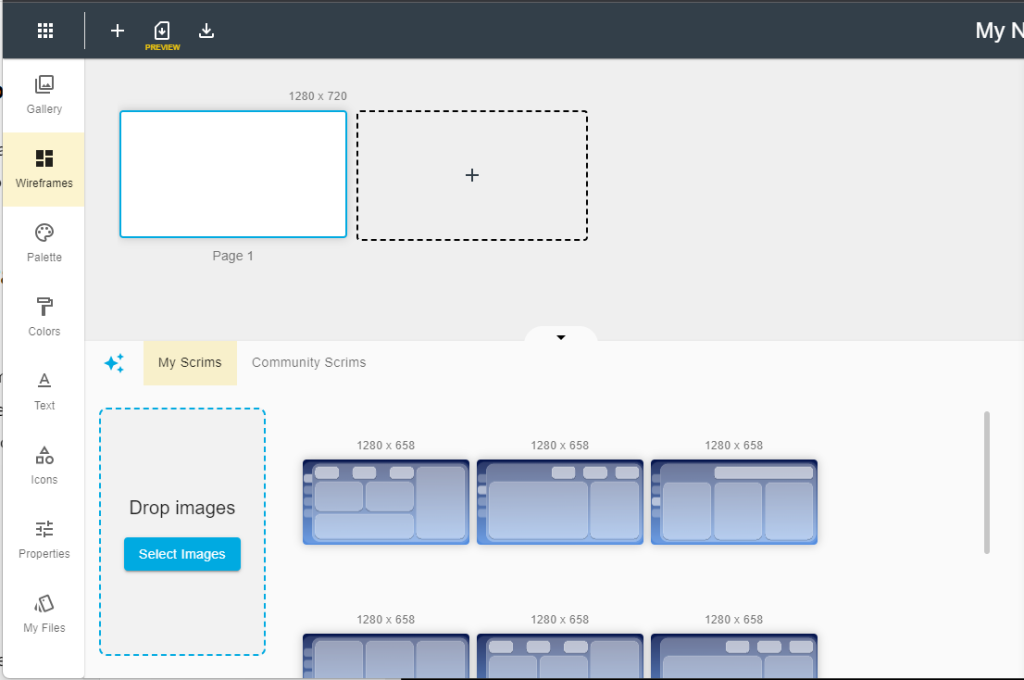
4. Effortless Application: With your background images in My Scrims, applying them to your reports is a breeze. You can choose to apply one image or add all the scrims by selecting the magic icon.

It all depends on your design preferences.
5. Automatic Page Creation: The Power BI Tips Theme Generator does the heavy lifting for you. When you apply the background images, it automatically creates the background pages for your report.
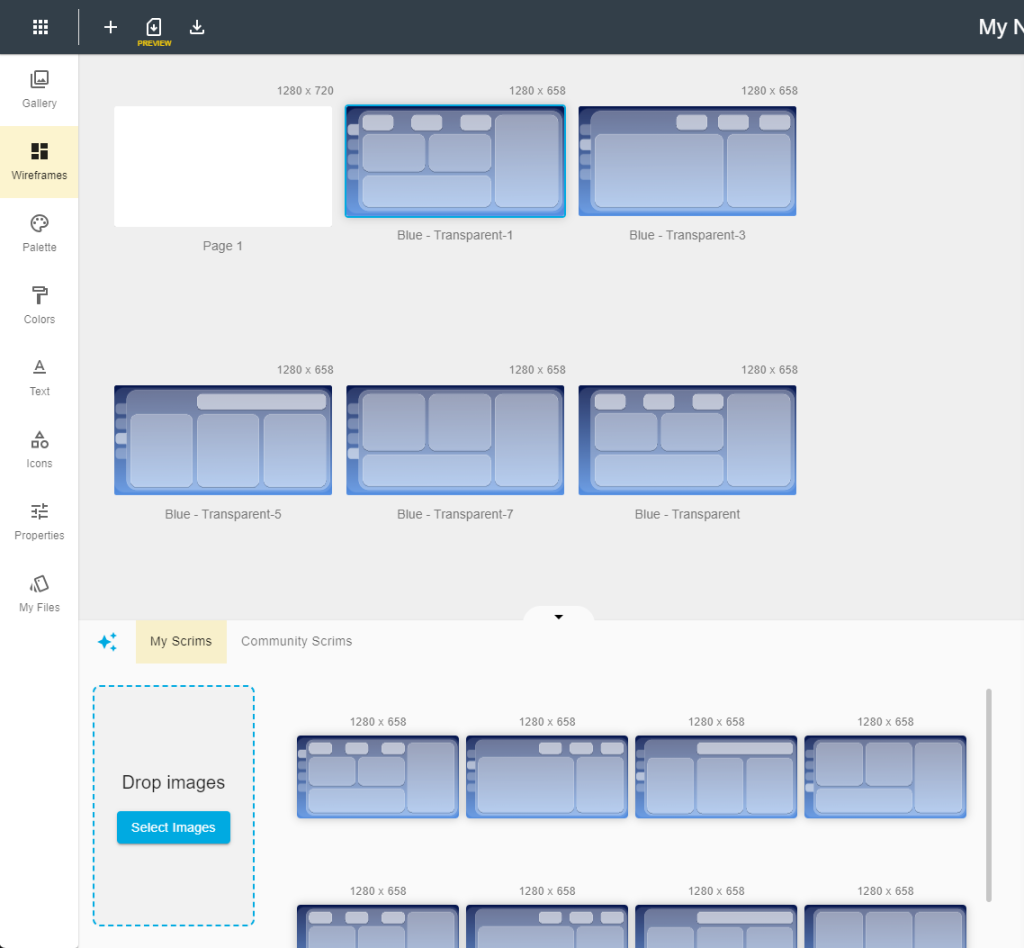
The Power of Streamlined Theme Building
The Gallery Integration in Wireframes for Scrims in the Power BI Tips Theme Generator is another unique feature built to empower you. You can effortlessly enhance your Theme projects with fresh backgrounds, ultimately saving you time and streamlining your Theme building process.
Whether you’re a seasoned Power BI user or a newcomer to the world of data visualization, this feature offers a user-friendly, efficient solution for creating visually appealing Wireframes for your reports. The Gallery Integration combines the creative power of the Gallery into the Wireframe building process.
So, if you’re ready to take your Power BI reports to the next level, check out this new feature in the Wireframes area. Streamline your design process, and create a visual narrative that speaks to your audience. Happy Theming!