
Measures – Calculating a Sum
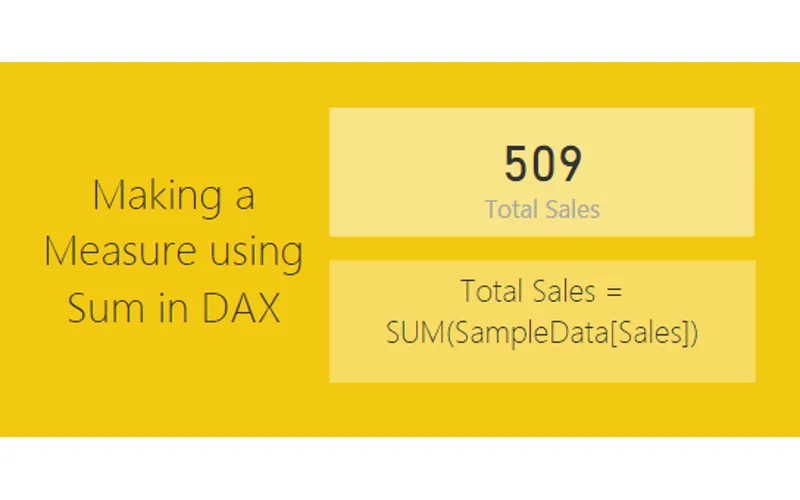
How do I calculate a total with a DAX measure that changes when I select data on the page?
TL;DR. On the Home ribbon, New Measure: Total Sales = SUM(SampleData[Sales]) on a Card. A stacked bar of Category and Sales filters it (Apples 283, Oranges 226). Set ID to Don’t Summarize. Do not add SUMX or other totals.
What is the Total Sales formula on this page?
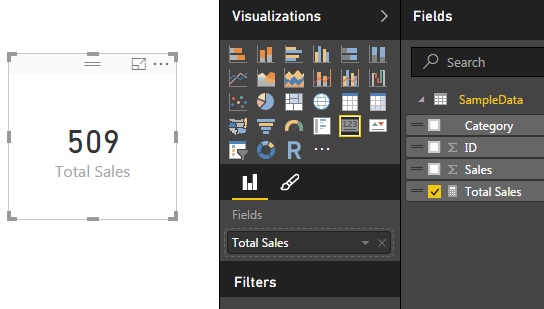
Creating the SUM Measure starts with New Measure on the Home ribbon and writes Total Sales = SUM(SampleData[Sales]).
Why does the card change when a bar is clicked?
Clicking a bar filters the Card to that subset. Apples shows 283 and Oranges shows 226. The conclusion says the measure totals one numeric column for the filtered subset.
Why set ID to Don’t Summarize?
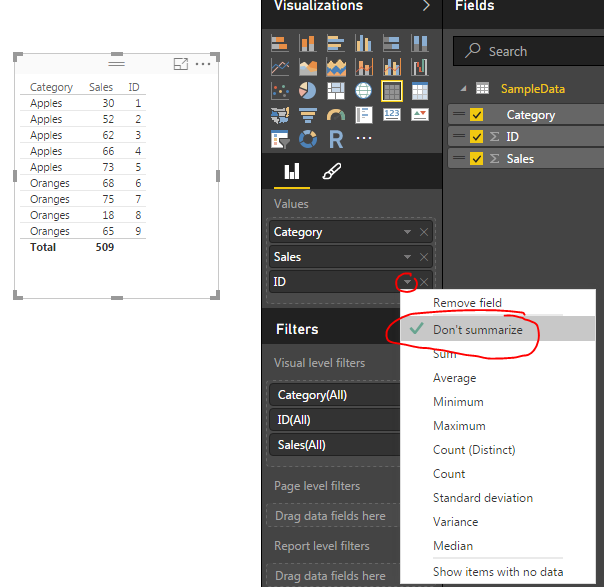
In Setting Up the Data, the table was aggregating ID. Don’t Summarize is what lists the unique rows.
Which visuals does the tutorial actually build?
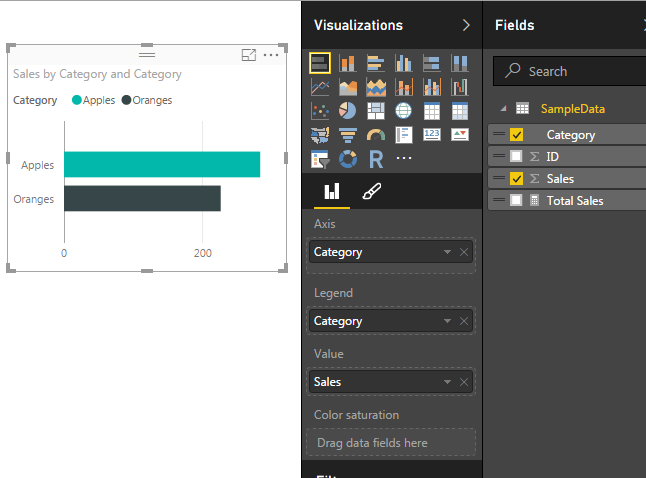
A table of Category, Sales, and ID; a Card of Total Sales; and a stacked bar with Category on Axis and Legend and Sales on Value.
Which Desktop build does the post name?
Materials for this Tutorial names April 2016, version 2.34.4372.322. That build is historical. You do not need to match it today.
Related: Import CSV file to Power BI, Measures – Calculating % Change, and Query Editor – Editing M Code.
Often there are times when you will want to display a totals. Using measures to calculate a total are extremely easy to use. The power of using a measure is when you are slicing and selecting different data points on a page. As you select different data points the sum will change to reflect the selected data.
Materials for this Tutorial
- Power BI Desktop (I’m using the April 2016 version, 2.34.4372.322) download the latest version from Microsoft Here.
- CSV file with data, download SampleData in CSV format.
To load the CSV file into Power BI Desktop you can follow along in this tutorial, Import CSV File into PowerBI Desktop.
Setting Up the Data
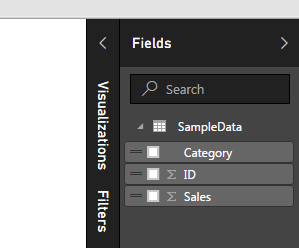
Once you’ve loaded the CSV file into Power BI Desktop your fields items should resemble the following:
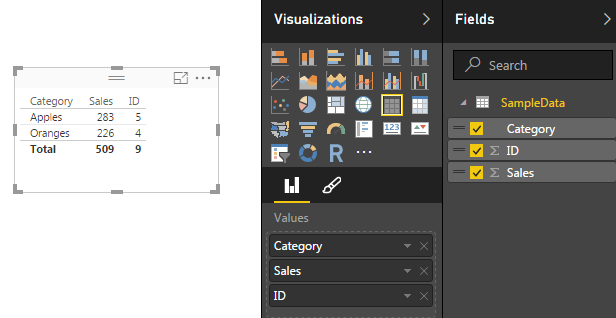
Add the Table visual from the visualizations bar into the Page area. Drag the following items into the newly created table visualization: Category, Sales, and ID. Your table should look like the following:
Click the Triangle next to the ID column under the Values section in the Visualization bar. A menu will appear, select the top item labeled Don’t Summarize.
Creating the SUM Measure
This reveal all the unique items in our table of data. Now, we will create our measures for calculating totals. On the Home ribbon click the New Measure button. Enter in the following DAX expression.
Total Sales = SUM(SampleData[Sales])Note: In the equation above everything before the equals sign is the name of the measure. All items after the equation sign is the DAX expression. In this case we are taking a SUM of all the items in the Table SampleData from the column labeled Sales.
This will total all the items in the sales column. Click on the Card visual and add the Total Sales measure to the card. Your new card should look like the following.
Adding Interactive Visuals
Next we will add a bar chart to show how the data changes when the user selects various items on the page to filter down to different results. Add the Stacked Bar Chart to the page. In the Axis & Legend selectors add the Category column, and add the Sales column to the Value selector. This will yield the following bar chart.
Now we can click on items in the bar chart to see how the table of data and the Total Sales changes for each selection. Clicking on the bar labeled Apples provides a total sales of 283, and clicking on the Oranges shows a total of 226.
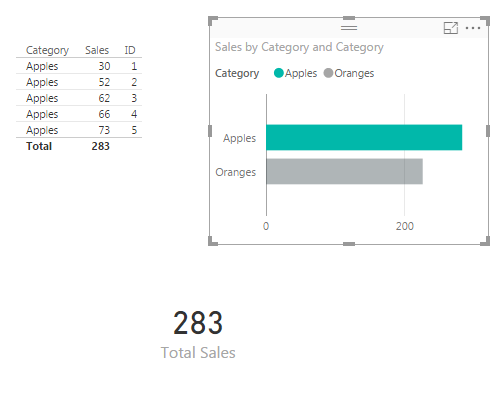
Our measure is complete. Now we can select different visualizations and each time we do PowerBI is filtering the table of available data down to a smaller subset.
Pro Tip: When building different visuals and measures often it is helpful to have a table showing what data is being filtered when you interact with the different visuals. Sometimes the filters that you are applying by clicking on a visual interact in non-expected ways. The table helps you see these changes.
Conclusion
We have now completed a measure that is calculating a total of all the numeric values in one column.
Want to learn more about PowerBI and Using DAX? Check out this great book from Rob Collie talking the power of DAX. The book covers topics applicable for both PowerBI and Power Pivot inside excel. I’ve personally read it and Rob has a great way of interjecting some fun humor while teaching you the essentials of DAX.