
Loading Excel Files from SharePoint
How do I load Excel files from SharePoint into Power BI Desktop?
TL;DR. In Desktop use Get Data, SharePoint Folder, paste the site URL (not the full Home.aspx path), sign in, Edit the query, then expand the Excel file. SharePoint is useful when Power BI service can refresh from it.
What SharePoint URL do I paste?
Use the site URL only, like https://partner.onmicrosoft.com/sites/[Your Site Name]. Remove trailing SitePages/Home.aspx if it is in the browser address.
Which connector do I pick?
Get Data, SharePoint Folder, then Connect. Authenticate with your org account (or whatever your SharePoint requires).
How do I get the Excel table after the folder lists files?
Click Edit, find the file, use the double-down arrows to open the workbook, then pick the table or sheet that holds the data. Close and Apply when types look right.
Why load Excel from SharePoint instead of a local folder?
SharePoint can sit behind Power BI service refresh when you already have SharePoint O365 in the company. Adapt the steps to your site’s auth and libraries.
Related: Load Multiple Excel (xls or xlsx) Files, Loading Data From Folder, and Using Parameters to Enable Sharing.
This is a quick tutorial on how to load Excel files from a SharePoint page. SharePoint is a nice landing place for your data because it can be connected to the PowerBI.com service and thus can be used to schedule refreshes of data within your company (if you already have a SharePoint O365 account).
This tutorial will be slightly different than my previous tutorials as I don’t have a publicly available SharePoint site that can be used to connect to. So you will have to slightly adapt what I’m presenting to you to fit your particular SharePoint needs.
Prerequisites
First you must start off with a SharePoint site with a document library that includes an Excel file.
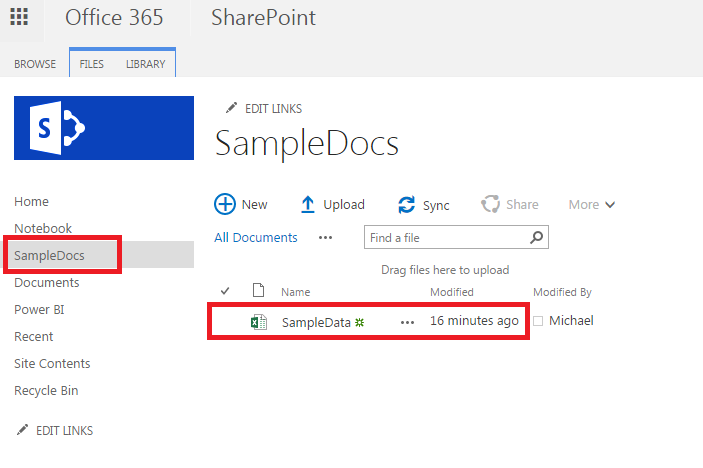
The document library is titled SampleDocs, and the file we want to bring into PowerBI is called SampleData.
Getting the SharePoint URL
Clicking on the Home in the left navigation will take you to the home location of the SharePoint site. Copy down the HTML site address from your browser of this location. It should look similar to the following:
https://partner.onmicrosoft.com/sites/[Your Site Name]/SitePages/Home.aspxConnecting Power BI to SharePoint
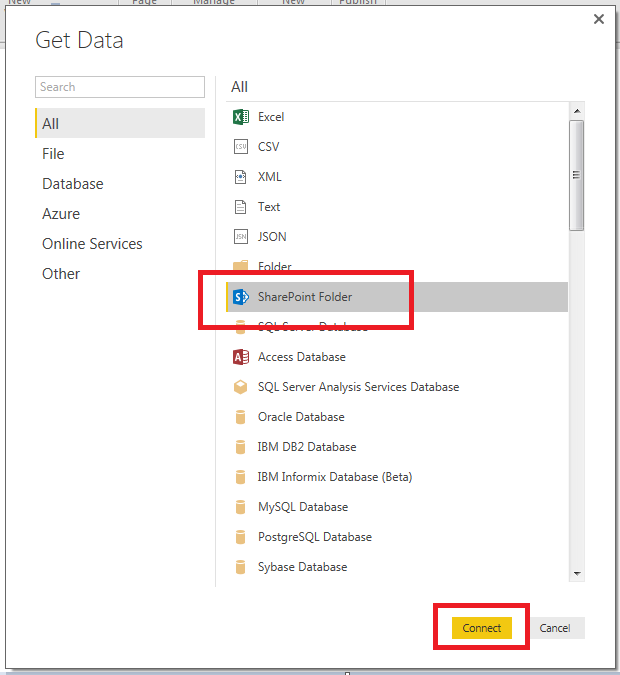
Open up PowerBI Desktop and on the home ribbon click Get Data. Highlight the SharePoint Folder and click Connect to continue.
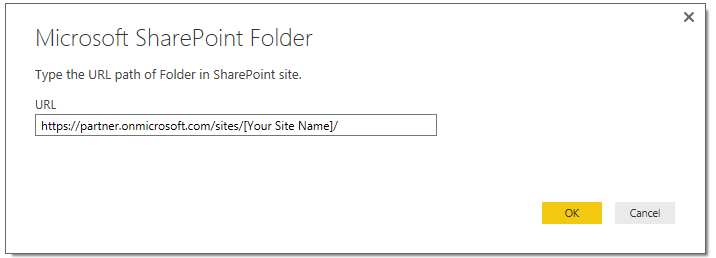
Upon clicking connect you will be presented with another screen asking for the SharePoint folder location. In the URL window you will add the SharePoint site that we identified above. However, it is important to note that you don’t need the entire web address. Rather PowerBI only needs the specific site name, thus all that needs to be inserted into the URL field is:
https://partner.onmicrosoft.com/sites/[Your Site Name]/The ending “SitePages/Home.aspx” can be removed.
Authentication
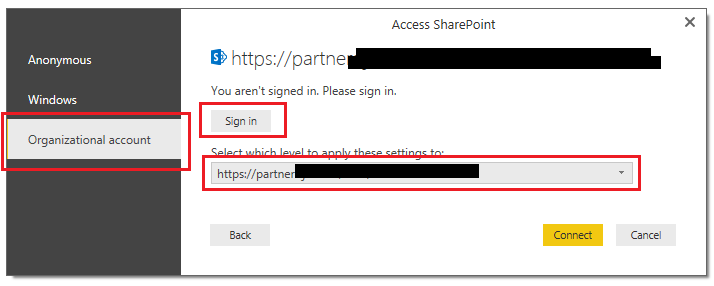
Clicking OK will present an authentication screen. Depending on your company or SharePoint authentication you will need to enter the credentials to log into the SharePoint Site. You may have to try a couple different connection methods until you are able to properly connect to the SharePoint site.
In my example I had to select Organization Account then click Sign in. I signed in with my credentials given to me via my I.T. group. Also, I had to use the drop down to select the proper level to apply the settings.
Loading the Data
After signing in click Connect to proceed. PowerBI Desktop will then load all the files from the SharePoint site in a preview window. Click Edit to modify the query.
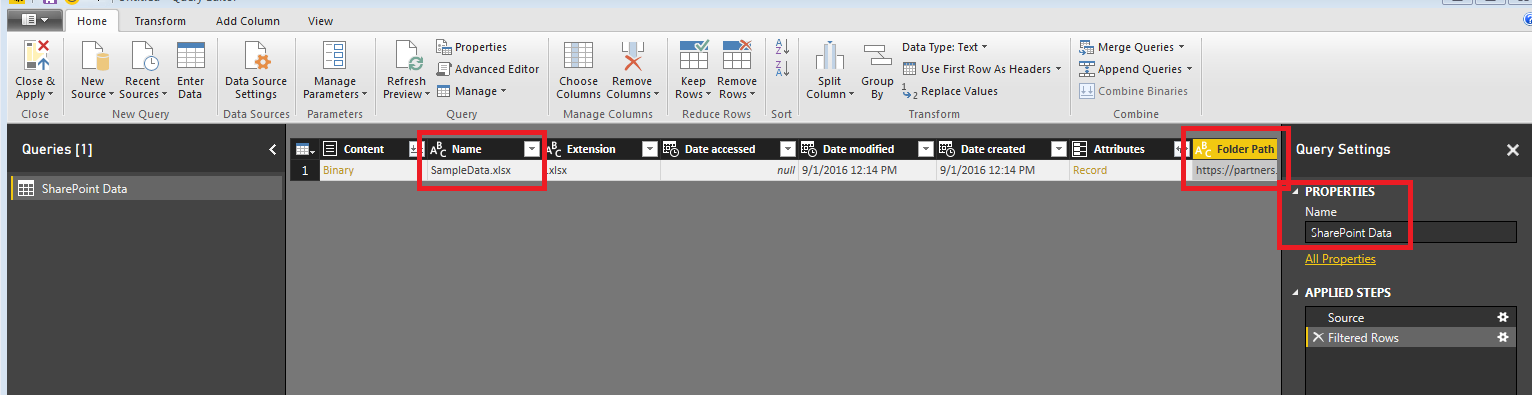
We can now see our SampleData File and the folder path. Each document library will be a separate folder path, thus if you have multiple document libraries then you will have all the files in those different folder paths.
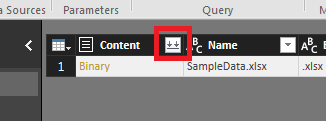
Next click the double down arrows to load the excel file.
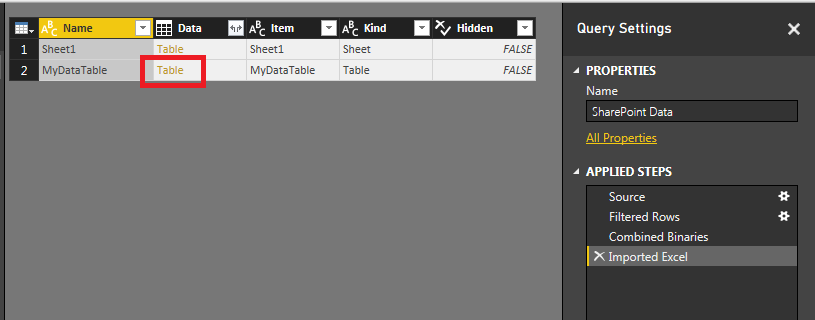
Power BI Desktop will then go to the SharePoint site and download the information inside your excel file. For my data I have all the information retained in a table within my excel document. The table name is called MyDataTable. Thus, clicking on the Table link in the MyDataTable row I will be able to open all the data within this table.
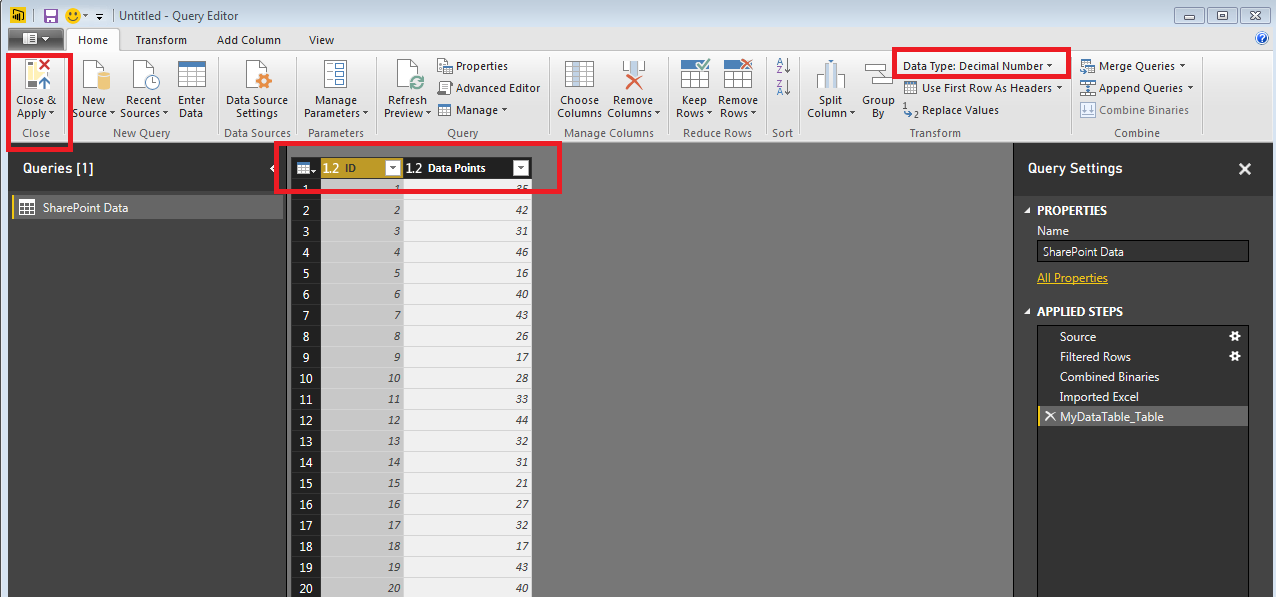
Finally the data is loaded from the excel table. Click Close & Apply on the Home ribbon to load the data into PowerBI.
Note: It is always important to check your columns and verify that your data types are correct. Highlight each column and make sure you select the proper Data Type for each column. Data Type can be found on the Home ribbon.
Thanks for visiting. Make sure you stop by again for more great tutorials.