
Loading Data From Folder

How do I load only the newest file from a folder in Power Query?
TL;DR. Get Data, Folder, then Edit. Sort Name descending on YYYY-MM-DD names, not Date Created or Accessed. Keep Top Rows 1 and open that file from Content. Close and Apply. Refresh loads the newest name. A changed column layout can fail the query.
Which connector does the tutorial use?
Get Data, All, Folder, Connect. The sample is the unzipped Monthly Data folder (Feb 2016 through April 2016). Click Edit. This path does not load every file.
Why sort by Name?
Sorting and Filtering Files says Date Accessed and Date Created were inconsistent after moves or copies. Names that start with YYYY-MM-DD, then Sort Descending on Name, put the newest file first. Newest means newest by that name sort.
How does it keep a single file?
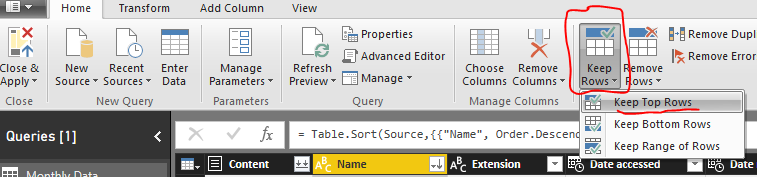
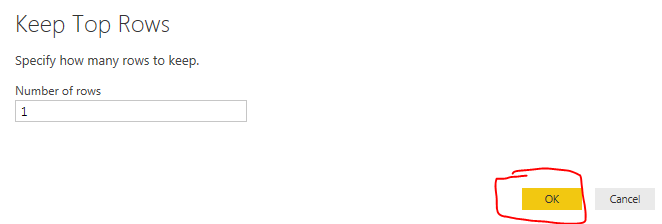
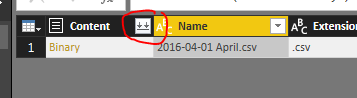
On the Home ribbon: Keep Rows, Keep Top Rows, enter 1. Then click the Load File control in the Content column. Close and Apply.
How is refresh tested?
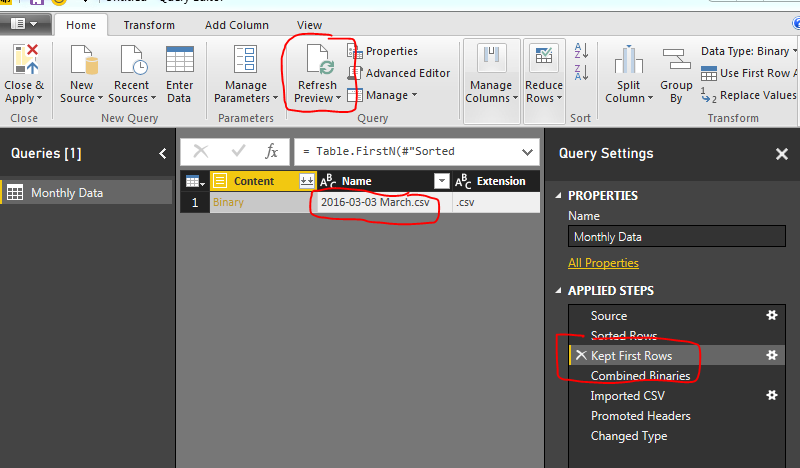
Delete 2016-04-01 April, then Refresh on the Home ribbon. March is what remains. Edit Queries, Refresh Preview: the Applied Step Kept First Rows shows March.
When does the page say this breaks?
The closing note says this fits an automated drop that keeps the same file format. A naming change, a different column count, or moved columns will most likely make the query fail.
Related: Folder of Files Loaded to Power BI Desktop, Load Multiple Excel (xls or xlsx) Files, and Query Editor – Editing M Code.
Let me setup a scenario for you. You get a data file from an automated system, it has the same number of columns but the data changes for every new file. Being the data savvy person that you are you’ve spent some time working in excel to make a template where you can copy your new data into and then automatically all your equations and graphs magically work. You pat yourself on the back and happily send out your fantastic report to everyone you know. Then tomorrow when the data comes to you again you repeat the same process over again. Still enamored by your awesome report, you send it out again knowing you have saved yourself so much time not having to do the analysis or creation of your reports over and over again.
Now, fast forward 3 months. That stupid report shows up again, and now you have to lug all that data from file to file and begrudgingly you sent out your report. Thus, is the story of the analyst. You love data, but you hate it as well. Well in this tutorial I’ll show you how to remove some of the pain of that continual data loading process by loading new data from a folder.
Understanding Folder-Based Loading
My previous post (found here) talks about loading data from a folder. In this tutorial we will add some logic to this method that will look at a folder but only load the most recently added item from that folder.
Getting Started
Data for this tutorial is located this link Monthly Data Zip File. This data in the ZIP file is a monthly data sample from Feb 2016 to April of 2016.
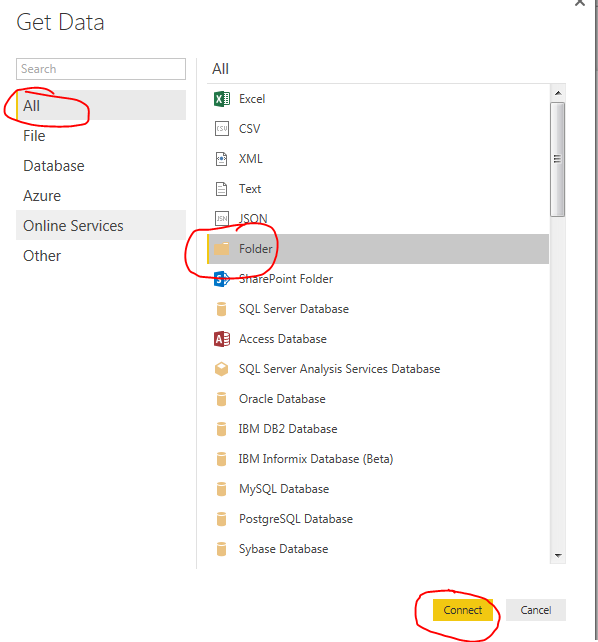
Download the zip file mentioned above and extract the Monthly Data folder down to your desktop. Open up PowerBI Desktop and click on the Get Data button and select All on the left side. Click on the item labeled Folder and click Connect to continue.
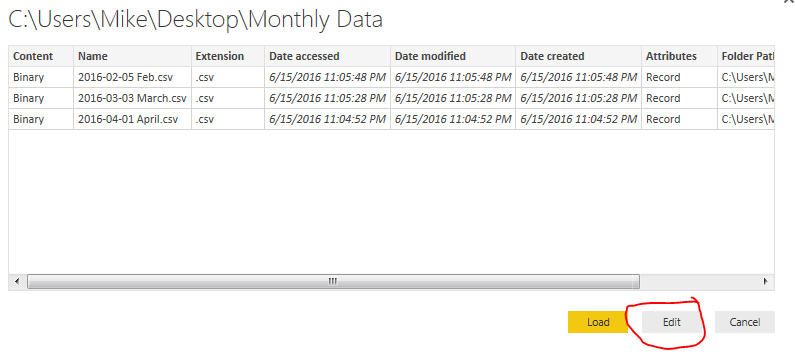
Select the newly unzipped Monthly Data folder that should be on your desktop. Click OK to continue. Upon opening that folder location you will be presented with the multiple files. Click Edit to edit the query.
Sorting and Filtering Files
Now you are in the Query Editor. This is where the fancy query editing will work to our advantage. We could load all the data into one large query. However, depending on the size of your data sets or how you want to report your data this may not always be desirable. Instead you may only want data from April, then May when the new data is sent next month.
Thus, our first step to start pairing down the data will be to first filter the files in sequential order. In this case because I have named the files with a Year-Month-Day format I can sort the files according to their names.
Note: When using PowerBI desktop it is a good practice to name the files beginning with a YYYY-MM-DD file name. This makes it really easy when sorting and ingesting information into PowerBI. I have used other columns of information such as Date Accessed or Date Created before but have gotten inconsistent results as these dates can change depending on when a file was moved or copied from one place to another.
Click the drop down next to Name and sort the files in Sort Descending.
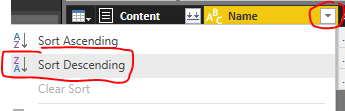
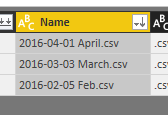
This places the files with the most recent file at the top of the list.
Keeping Only the Latest File
Next click on the Keep Rows button on the Home ribbon, select Keep Top Rows.
Enter the number 1 when the popup appears. Click OK to continue.
Now you’ll notice you have only one file selected which is our latest file from April. Click the Load File button found in the Content column.
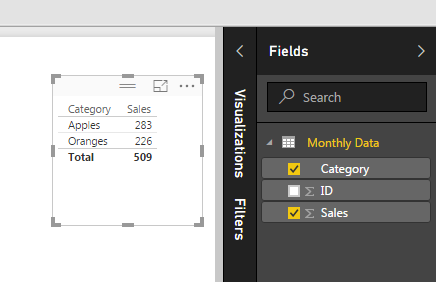
We have completed the activities in the Query Editor and can now load the data. Click Close & Apply found on the Home ribbon. All our April data has loaded. By making a simple table we can now see all the data that was just loaded.
Testing the Automatic Refresh
Now we will remove some data from our desktop folder labeled monthly data. Open the folder on the desktop labeled Monthly Data and delete the file labeled 2016-04-01 April. You should now have a folder labeled Monthly Data with only two files in it, one for Feb and one for March.
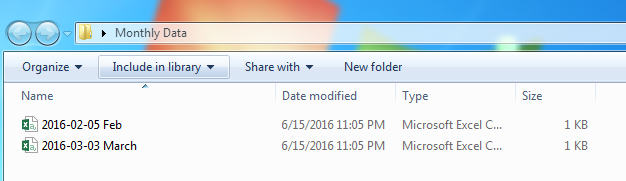
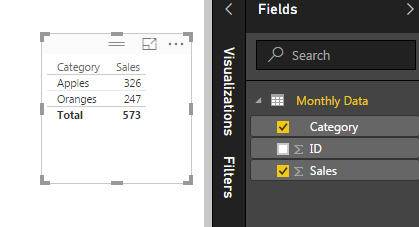
Return back to Power BI Desktop and click the Refresh button on the Home ribbon. Notice now how all our data has changed. We are now looking at the March data because it is the most recent file in our folder based on the file name.
To verify this we open the query editor (Click the Edit Queries on the Home ribbon). Click Refresh Preview on the Home ribbon and finally select the Applied Step called Kept First Rows. This will reveal the month of March as our data source.
Now, every time you add a new file to our folder and refresh PowerBI the latest file (based on the naming convention we talked about earlier) will always be loaded.
Note: This method works great when your data source is coming from an automated system. The file format must always be the same for this to work reliably. If the file naming convention changes, or the number of columns or location of those columns changes then the query will most likely fail.
Good luck and thanks for following along.