
Measures – Month to Month Percent Change
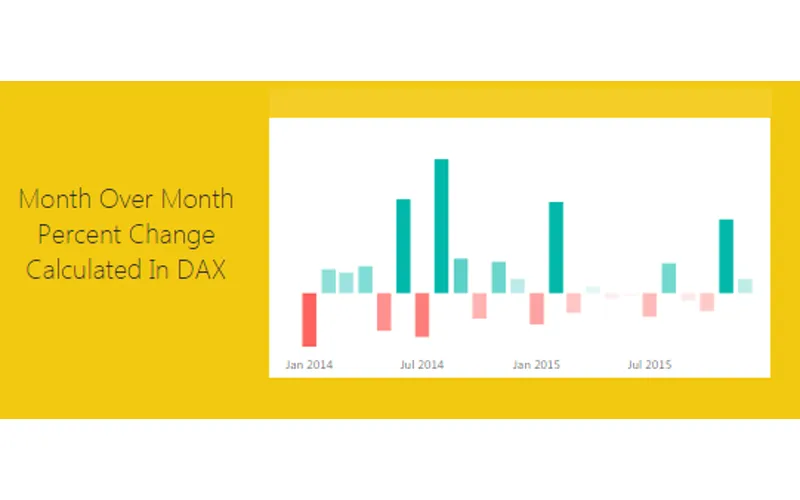
How do I calculate month-to-month percent change in DAX?
TL;DR. Create Total Scans as a SUM, Prior Month Scans with CALCULATE and PREVIOUSMONTH on the date column, then % Change is DIVIDE([Total Scans], [Prior Month Scans], blank())-1. Format % Change as Percentage on the Modeling ribbon.
What question does this measure answer?
How badge scans (or any monthly total) compare to the prior month, so you can see month-to-month increase or decrease in a time series.
Which three measures do I build?
Total Scans, Prior Month Scans, and % Change. Prior Month Scans uses PREVIOUSMONTH on the date field.
How is Prior Month Scans written?
Prior Month Scans = CALCULATE([Total Scans], PREVIOUSMONTH('Employee IDs'[Date])).
How is month-to-month percent change written?
% Change = DIVIDE([Total Scans], [Prior Month Scans], blank())-1, then set Format to Percentage.
Is this the same as year-over-year percent change?
No. This post is month-to-month with PREVIOUSMONTH. The later YoY tutorial uses the same idea with a different period.
Related: Measures – Year Over Year Percent Change, Measures – Dynamic CAGR Calculation in DAX, Dynamic Percent Change using DAX, Using Variables within DAX, and Creating A DAX Calendar.
I had an interesting comment come up in conversation about how to calculate a percent change within a time series data set. For this instance we have data of employee badges that have been scanned into a building by date. Thus, there is a list of Badge IDs and date fields.
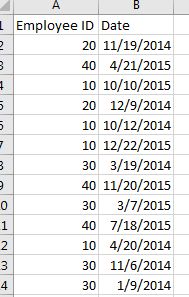
Looking at this data I may want to understand which employees and when do they scan into a building over time. Breaking this down further I may want to review Q1 of 2014 to Q1 of 2015 to see if the employee’s attendance increased or decreased.
Loading the Data
Here is the raw data we will be working with, Employee IDs Raw Data. Our first step is to Load this data into PowerBI. I have already generated the Advanced Editor query to load this file. You can use the following code to load the Employee ID data:
let
    Source = Csv.Document(
        File.Contents("C:\Users\Mike\Desktop\Employee IDs.csv"),
        [
            Delimiter = ",",
            Columns = 2,
            Encoding = 1252,
            QuoteStyle = QuoteStyle.None
        ]
    ),
    #"Promoted Headers" = Table.PromoteHeaders(Source),
    #"Changed Type" = Table.TransformColumnTypes(
        #"Promoted Headers", {{"Employee ID", Int64.Type}, {"Date", type date}}
    ),
    #"Sorted Rows1" = Table.Sort(#"Changed Type", {{"Date", Order.Ascending}}),
    #"Calculated Start of Month" = Table.TransformColumns(#"Sorted Rows1", {{"Date", Date.StartOfMonth, type date}}),
    #"Grouped Rows" = Table.Group(
        #"Calculated Start of Month", {"Date"}, {{"Scans", each List.Sum([Employee ID]), type number}}
    )
in
    #"Grouped Rows"
Note: I have highlighted
Mikein the file path because this is custom to my computer, thus, when you’re using this code you will want to change the file location for your computer. For this example I extracted the Employee ID.csv file to my desktop. For more help on using the advanced editor reference this tutorial on how to open the advance editor and change the code, located here.
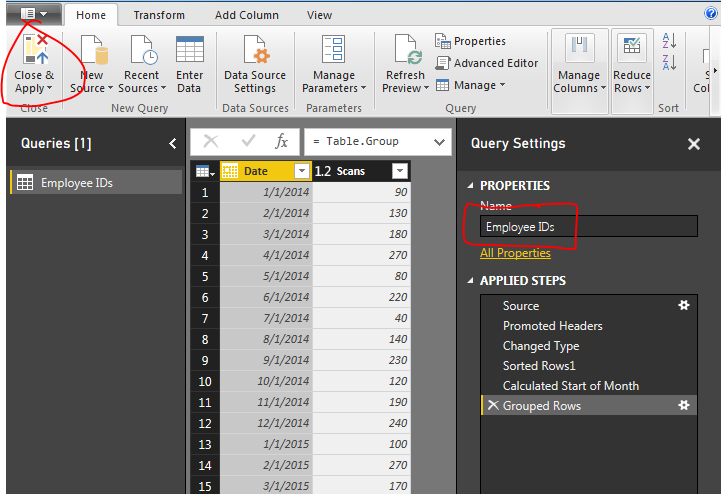
Next name the query Employee IDs, then Close & Apply on the Home ribbon to load the data.
Creating the DAX Measures
Next we will build a series of measures that will calculate our time ranges which we will use to calculate our Percent Change (% Change) from month to month.
Now build the following measures:
Total Scans - sums up the total numbers of badge scans.
Total Scans = SUM('Employee IDs'[Scans])Prior Month Scans - calculates the sum of all scans from the prior month. Note we use the PREVIOUSMONTH() DAX formula.
Prior Month Scans = CALCULATE([Total Scans], PREVIOUSMONTH('Employee IDs'[Date]))Finally we calculate the % change between the actual month, and the previous month with the % Change measure.
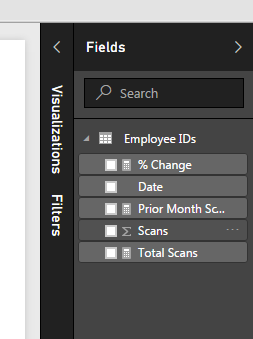
% Change = DIVIDE([Total Scans], [Prior Month Scans], blank())-1Completing the new measures your Fields list should look like the following:
Building the Table Visual
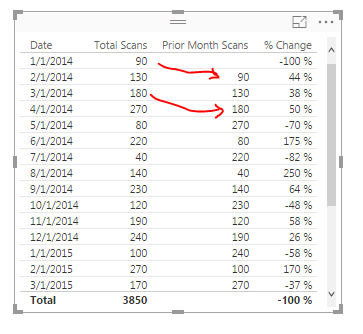
Now we are ready to build some visuals. First we will build a table like the following to show you how the data is being calculated in our measures.
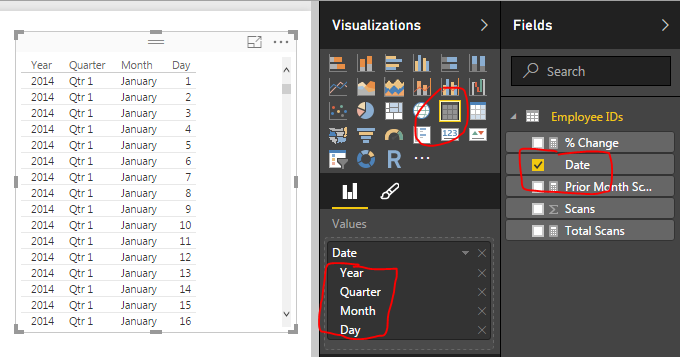
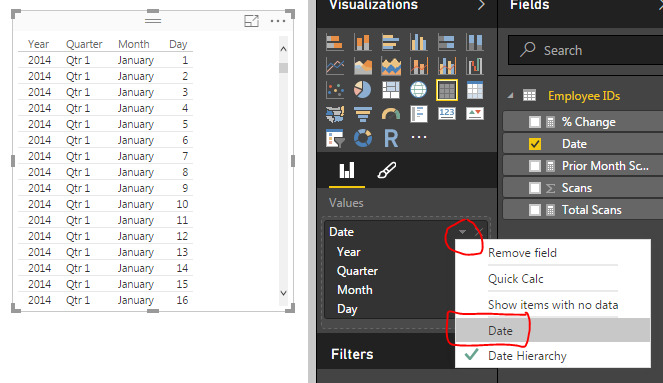
When we first add the Date field to the chart we have a list of dates by Year, Quarter, Month, and Day. This is not what we want. Rather we would like to just see the actual date values. To change this click the down arrow next to the field labeled Date and then select from the drop down the Date field. This will change the date field to be viewed as an actual date and not a date hierarchy.
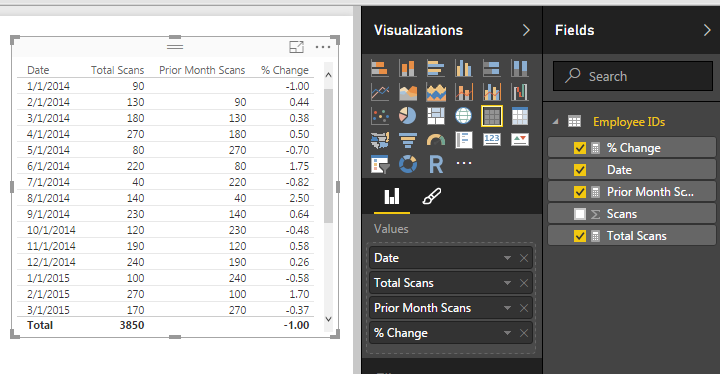
Now add the Total Scans, Prior Month Scans, and % Change measures. Your table should now look like the following:
Formatting the Percent Change
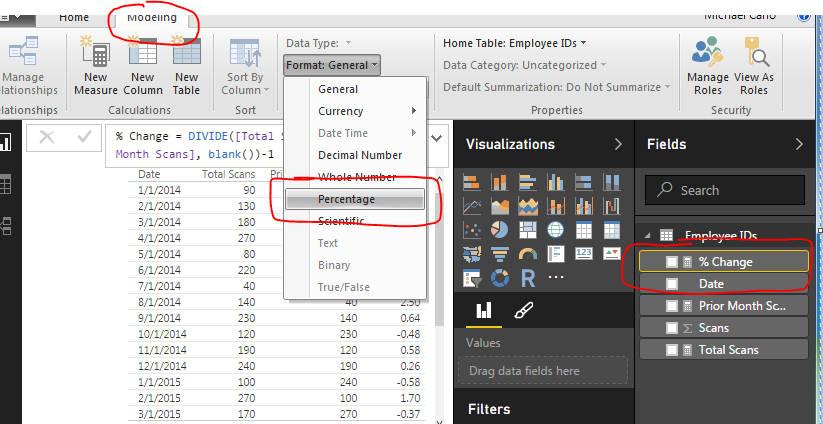
The column that has % Change does not look right, so highlight the measure called % Change and on the Modeling ribbon change the Format to Percentage.
Finally now note what is happening in the table with the counts totaled next to each other.
Adding a Visual Chart
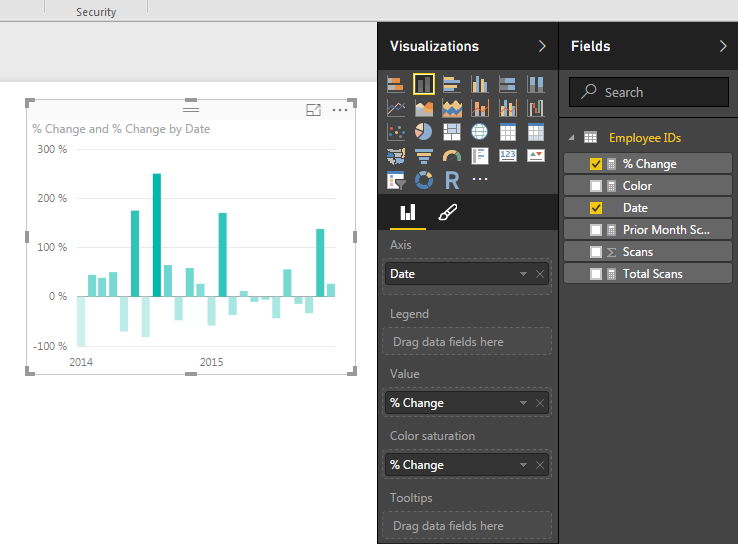
Now adding a Bar chart will yield the following. Add the proper fields to the visual. When you’re done your chart should look like the following:
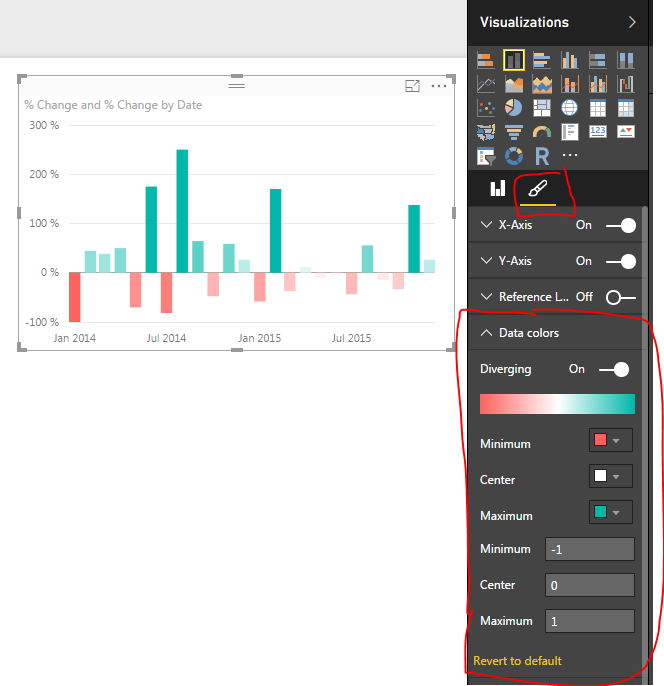
To add a bit of flair to the chart you can select the Properties button on the Visualizations pane. Open the Data Colors section, change the minimum color to red, the maximum color to green and then type the numbers in the Min, Center and Max.
Well, that is it. Thanks for stopping by. Make sure to share if you like what you see. Till next week.