
Start of Month DAX Calendar
How do I build a DAX date table with only the first day of each month?
TL;DR. On the Modeling ribbon, click New Table and enter GENERATE(GENERATESERIES(1,12), VAR inc = [Value] RETURN ROW("date", DATE(2017,inc,1))). Use 48 instead of 12 for four years of month starts. Add EOMONTH(DATE(2017,inc,1), 0) for a Month End column.
Why build a start-of-month table instead of a full calendar?
My project data was already aggregated to the first of each month, so a daily calendar was more than I needed. One row per month start matched the data.
How does the start-of-month formula work?
The formula starts with GENERATESERIES(1,12), which makes a list of numbers 1 to 12 in a column called [Value]. VAR inc captures each number, and DATE(2017, inc, 1) returns the first day of that month.
How do I cover more than one year?
Change GENERATESERIES(1,12) to GENERATESERIES(1,48). That one number change gives you four years of month starts.
How do I add a month-end column?
Inside ROW, put a comma after the first date pair and add "Month End", EOMONTH( DATE(2017,inc,1), 0). The table then shows the last day of each month next to its start date.
Why does Date show up as a hierarchy in the table visual?
Power BI adds Date as a Date Hierarchy when you drag it into the visual. Click the drop-down arrow next to Date and choose Date to remove the Year, Quarter, Month, and Day levels.
Related: Creating A DAX Calendar, Building Date Table from Scratch, and Measures – Month to Month Percent Change.
While on a recent project I needed to build a variation of the DAX date table. In my previous post, found here Creating DAX Date Tables I was built a date table for every day of the month for multiple years. I’ve only ever needed to consume a fully populated date calendar, but in this instance because the data I was collecting was already aggregated to the first of the month I only needed a date calendar with each month’s start date. After some playing around with my previous DAX functions I think I was able to come up with an elegant solution.
Let’s get into it.
Let’s begin by making a basic table. Open Power BI Desktop, on the Modeling ribbon click New Table.
Enter the following code:
Dates = GENERATE ( CALENDAR ( DATE ( 2017, 1, 1 ), DATE ( 2017, 12, 31 ) ), VAR currentDay = [Date] VAR day = DAY( currentDay ) VAR month = MONTH ( currentDay ) VAR year = YEAR ( currentDay ) RETURN ROW ( “day”, day, “month”, month, “year”, year ) )
This will produce our standard table from January 1st to December 31st, 2017 with every day populated in between. In, addition we get numerical values for Day, Month and Year.
Note: This table is producing a list of dates using the Calendar DAX function then iterating row by row to calculate each numerical value for the Day, Month and Year.
Add the Table visual with the following Values from our created DAX table.
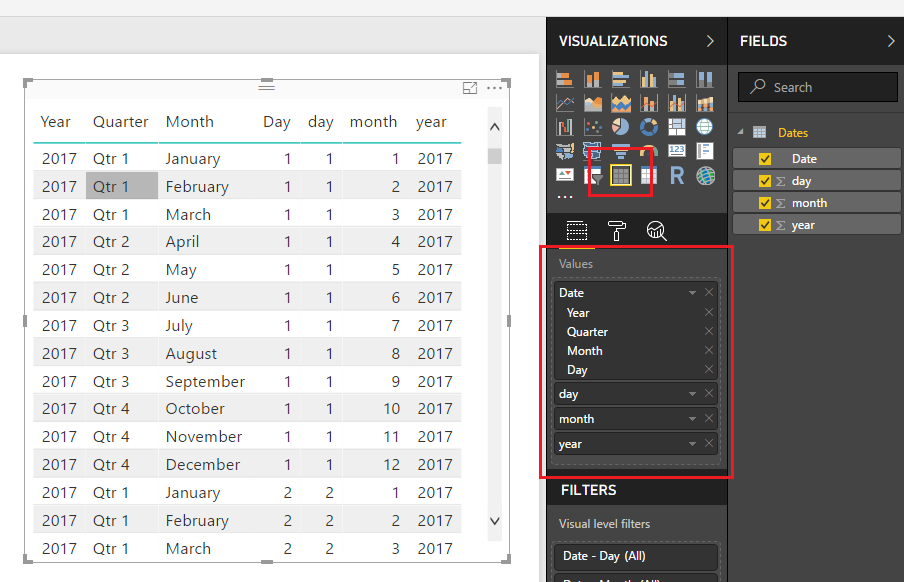
Dates Table
Note: When you drag over the field labeled Date the field will be naturally added as a Date Hierarchy. To remove the Date Hierarchy, you have to click the little drop down arrow next to the word DATE and select the word Date in the drop down menu. This will remove the Year, Quarter, Month and Day date context from the visual.
The date calendar we made has every date, but we want only the first of each month.
Lets build a new table by following the previous steps and adding the following:
Start of Month Dates = GENERATE ( GENERATESERIES(1,12), VAR inc = [Value] RETURN ROW ( “date”, DATE(2017,inc,1) ) )
Add the Table visual to the report page and add the following fields:
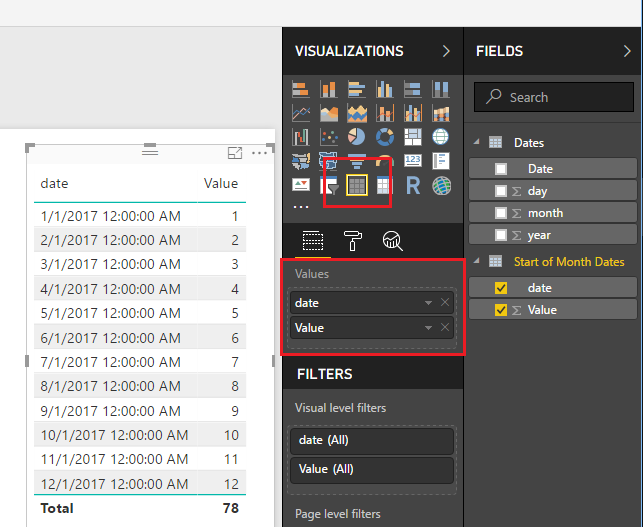
Start of Month Date Table
Note: I already removed the Date Hierarchy using the instructions listed above in the previous note.
This new DAX Date table is first generating a list of numbers 1 to 12 one for each month. Then it iterates through the list and produces a date using the Date function were we manually provide the Year, and the day. You can see the Generate function produces a column of data called [Value]. The variable denoted by VAR inc is capturing the number for each month. So, now what if we want to produce more than one year of dates? Super simple, just change the generate series from 1 to 12 to 1 to 48. This will produce four years of dates.
Change your Start of Months Dates to the following:
Start of Month Dates = GENERATE ( GENERATESERIES(1,48), VAR inc = [Value] RETURN ROW ( “date”, DATE(2017,inc,1) ) )
With one number change we can produce 4 years of dates.
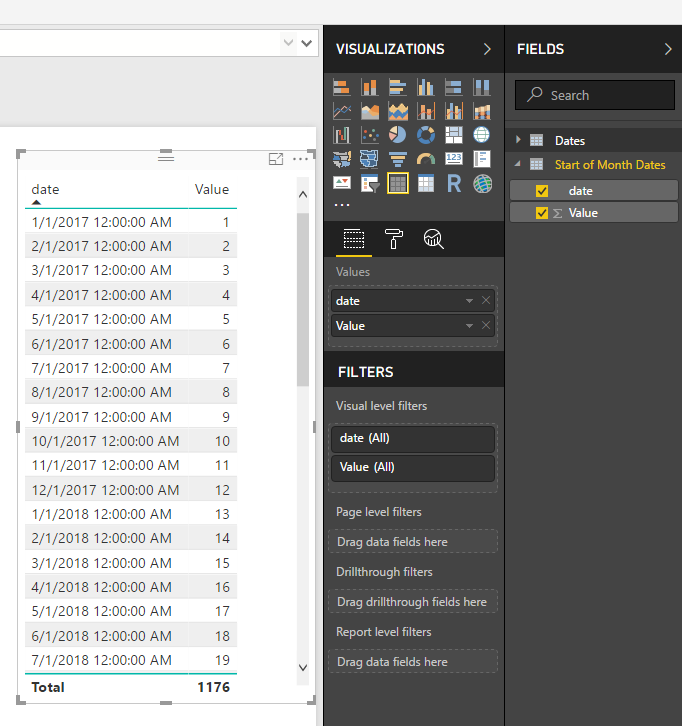
Four Years of Dates
Cool, let’s go a little further. Just in case we need it we can also produce a list of dates that contain the end of the month. Add the following your Start of Month Dates with the following DAX table (don’t forget the comma on line 1 in the ROW function):
Start of Month Dates = GENERATE ( GENERATESERIES(1,48), VAR inc = [Value] RETURN ROW ( “Date”, DATE(2017,inc,1) , “Month End”, EOMONTH( DATE(2017,inc,1), 0) ) )
We have added a new column to note the end of each month.
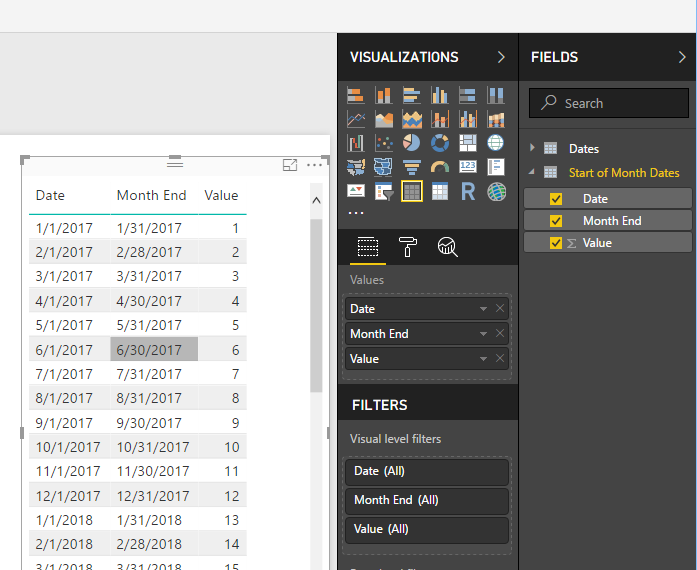
Date Table with Start and End Columns
Well, thanks for following along. In my use case this start of month date table was exactly what I needed. I thought this was a handy little DAX table, and I hope you have found this helpful as well. Be sure to share this post if you found this helpful.